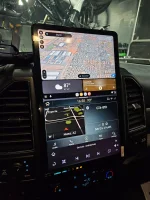
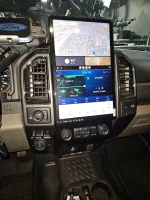
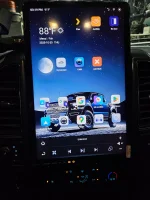
Ok pulled the trigger on 16.8" Unit here, so figured I'd share thoughts and tips on install after running it for few weeks, happy to field any questions:
Purchased the 16.8" Sync 3 version with 8GB Ram / 128GB Storage.
Install was conducted in 2022 Ford F250 XLT that came with 8" OEM Sync 3 system, and manual A/C.
Had my eye on these systems for quite a while, first the 14.4" variants, and several other recent Android Head Units that eliminate the Sync functionality. Love my truck, but never been happy with the 8" screen, and looked into the aftermarket Sync4 12" upgrades, but those seem way overpriced and seem to come with their own issues after reading lots of forums and researching other experience. Finally came to conclusion that losing access to the Sync 3 settings and underlying functions, was a non-starter for me, so this left me with going with system like this one that integrates with Sync3 providing full access to OEM interface via included console app that basically emulates the original screen. Ask seller a few questions before ordering and they seemed very responsive so figured I'd give them my business and glad I did.
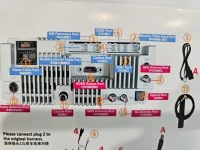
The screen arrived well packaged, with all expected parts and well protected. Was very impressed that the seller even includes a pretty decent large foldout instruction 'poster' that helped out a lot in trying to decipher where all the parts and plugs go. It was a bit confusing at first trying to understand from their install videos how the Sync3 module gets remounted in the truck after removing the screen, as the video cuts past that part. But there are two new brackets that get mounted to the original sync3 APIM module, then is screwed back into dash first, before further items installed. As a critic for improvement for seller, this process should be shown in video, and it would be nice if all the different screws were labeled as to what they go to. There are several different small sized screws, and it's a bit of a guessing game to figure out which parts each screw type goes to.
After a little bit of trial and error on which plugs to run video into so that the Sync app and OEM 360 cameras worked, finally got things figured out, and initially missed the 'notes' toward bottom of product listing 'step 5', indicating that the sync output video has to be plugged into the 'CVBS-IN-1' port, and not the rear camera input cable that's also included. Technically the rear camera input RCA harness does not have to be used, but is included which led to some confusion. Throughout the process, I ended up pulling things back apart and making some further adjustments as I figured out how the product worked, had time to test, and came up with couple small modifications/improvements to the install. I'll cover those more at bottom, but will say that I'm pretty darn happy with the purchase. There's a couple quirks here and there, it's not 100% perfect, but it's still a huge upgrade over the factory screen, and once you understand how the new tablet and OEM sync system interact with each other, it's pretty easy to use. I had a couple of additional questions along the way and the seller was extremely responsive often getting back to me within a few hours, and fielded several different questions, and even got me an update package within couple days to fix small UI bug in software. Took it on a trip week ago and didn't have any complaints with it, and everything worked smoothly.
As to retaining stock functionality, every single original thing works, period. Sirius, OEM 360 camera system, aux trailer backup cameras, trailer assist system, etc.
I was worried the screen may be too big, but it looks fantastic and seems well made and sturdy. No issues with damage or other screen malfunctions experienced, and just works.
Now, couple of additional things I observed and notes to help out:
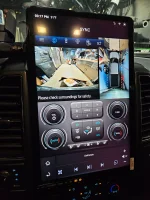
Camera/Video Feed: One of the videos shows a full screen camera interface that looks very different then stock system. This interface can be manually activated in settings, but it IS NOT the actual interface you'll get if using stock Ford 360 camera system. Best I can tell, the camera interface shown in video requires an aftermarket 360 camera system not included. The stock system works fine, and basically just mimics stock Ford 360 interface on original system. Just a bit disappointing as video makes it seem like its included. Furthermore, the included wiring has you plug the sync video output RCA into the CVBS-1 input, and nothing is plugged into the rear camera input harness. This results in things mostly all working, however, the included 'CAM' app on the tablet only gets its video feed from the rear-camera input on head unit which is not used by default. So, if you want that to work as I did, I'd get a RCA splitter like the following, and split the sync video output so it can be plugged into both CVBS-IN-1 and the Rear Cam input RCA. That resulted in everything still working as it should, and I could also activate the Camera feed via physical camera button in motion, and pull up the 'CAM' app and get a video feed.
This is the splitter I used:
https://amzn.to/4oFsaPy
Finally, when installing and testing things, I found that you have to fully start the truck when putting transmission into reverse for the reverse video interface to show correctly. If you just set Key to On and place in reverse, the video feed will not show correctly and leave you with incorrect impression something is wrong.
A/C Controls: The unit includes both the auto/digital panel, and manual ac panel depending on your setup. You basically have to disassemble you original controls and control board and install them onto this new unit. Not to hard, but just go slow and be very careful with the ribbon cables not to damage things, and make sure you keep the control knobs aligned correctly when reinstalling. I also found that you have to be careful not to over tighten the screws that hold knobs in-place or they bind a little bit. So, make sure you test and adjust thoroughly before installing everything. On the manual A/C, you'll notice that the onscreen controls don't do anything at all, which is a bit confusing. I was able to hide and disable most of the onscreen controls since I have the manual version by digging into the CAN settings on the head unit.
Android Auto/Carplay: This works quite well and don't have any issues with it. It uses the common Zlink app like most android head units, but connects quickly and is responsive. Couple small annoyances but nothing major is that pinch to zoom does not work in Zlink, so you have to use on screen +- buttons for zooming in Maps. I also had a weird semitransparent white bar that was covering my top status bar when in Fullscreen Android Auto mode, blocking ability to read clock and thermostat. The seller was able to provide an update file that resolved this issue and looks good now.
USB Plugs: I originally ran the USB ports into my glove-box, but then saw another post online of someone who installed a couple extension jacks into top center speaker tray. So I pulled mine back apart and did the same. Requires a little bit of careful cutting with Dremel, but makes a big difference and much more finished look then having to reach into glovebox to plug USB IN. Would recommend grabbing these before starting if interested:
https://amzn.to/47kQgti
GPS Position: Originally, I mounted the GPS receiver under dash just in front of center speaker tray. There's a nice platform there. However, I was having a bit of interference and signal issues so ended up moving it out on top of dash just in-front of center speaker and made a large improvement.
LTE: Tried using a Verizon Sim card but could not get it to work correctly. It would occasionally get a single bar, but never get useable signal or data to transmit. Guessing some frequency incompatibility. I ended up using T-Mobile Sim and that worked just fine and getting decent 4G/LTE signal.
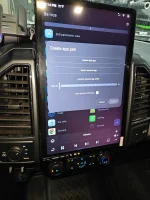
Split-screen: Android 13 which is what's installed on this does support split-screening apps, but is very picky about what apps it allows by default. Even after turning some advanced settings in Developer Options, still could not get it to allow split screening of either the Sync console app or Android Auto. Which was disappointing as those were two primary apps I hoped to run split-screen together. However, stumbled upon a recommendation on another forum to try the 'Be Nice Tiny App Launcher' and this worked great. You just download it onto the android tablet via Playstore and can setup app-pair shortcuts, and this overrides the split-screen limitations.
Modern aesthetics. Open-source soul. Your Android launcher.

play.google.com
Hopefully some of these tips help out if you're buying and installing one.





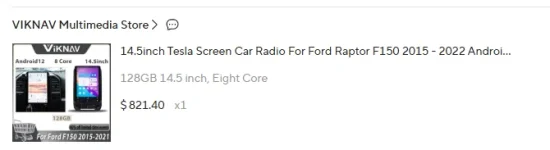

![20251030_151021[1].webp](/data/attachments/141/141977-be3fa9901e90281dd4c912612f291bf4.jpg?hash=mwj-Fjn88e)